Slack Shortcut
Make sure you have the Slack Plugin Installed
What can I do with Slack shortcuts?
First, lets create a shortcut to DM a person.
-
Open your UL Launcher CMD + Space
-
Type
slack, and select the option with the plug icon

- Click on the shortcut option on the top right
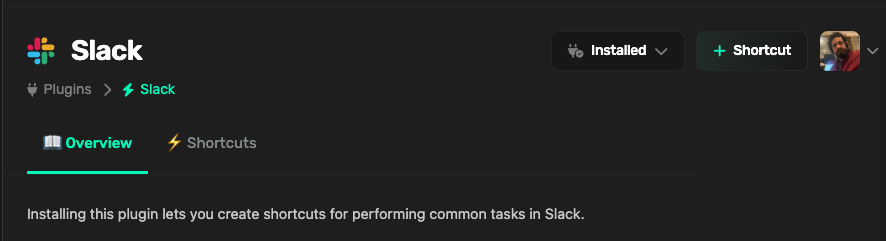
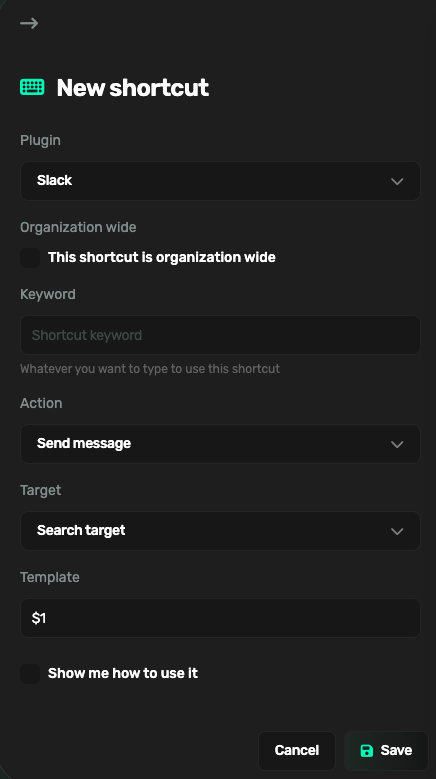
- A shortcut sidebar will open allowing you to create a shortcut. Slacks will look similar to this. Lets make a shorcut to DM someone and always have it send them a fun emoji.
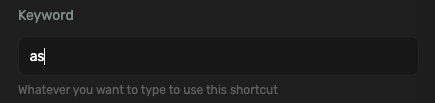
- Set a keyword that you will type in the command bar to use a shortcut.
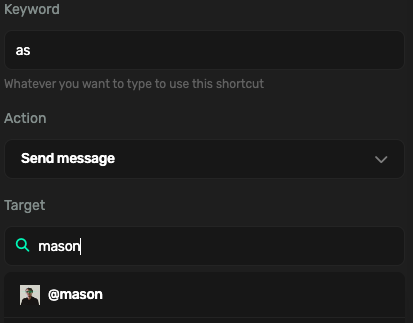
- Action should be send message, and under target, you can search slack for the person, group, or channel you want to message
- Find an emoji, and type its text into the Template replacing the $1
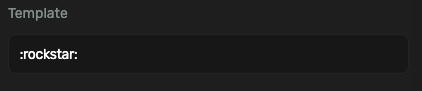
We can use the template ($1) to set up an emoji. Template allows you to put anything here that will send at the start of every message for your new shortcut.
For example, if I put G in place of $1, a G will be at the front of every message I send Mason. We are going to use it to send an emoji.
- Click save and test your command!
- Open your UL Launcher
CMD+Space - Type as followed by a message and send!


- Why is this useful?
As soon as you need to communicate an idea, a response, a simple good morning, communicate that idea at near thought to text speed.
-
Open your UL Launcher CMD + Space
-
Type
gm -
Hit Return