Understanding the Command Bar
The UL Command Bar is your central hub for quick actions. Access it using:
- Mac: ⌘ + Space
- Windows: Ctrl + Space
- Web: ⌘ / Ctrl + K
Once it’s open, just start typing. The input prompts you to “Type a shortcut or search…”.
Command Bar Elements
The Command Bar consists of four main components:
- Icon - Visual identifier for the application or action
- Application Name - Name of the app or plugin
- Action - What happens when you select this item
- Shortcuts - Keyboard shortcuts to execute the action
Example Usage
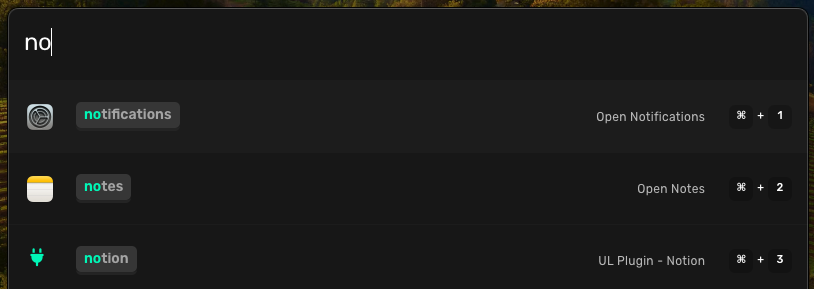
Let’s say you type no in the Command Bar:
- You’ll see matching applications from your system
- You’ll also see relevant UL Plugins (like Notion)
- Quickly jump to a result with ⌘ + Number (Mac) or Alt + Number (Windows). The badge next to each of the first nine results shows the exact combo
Understanding the UI
Faded Items
- Faded entries indicate uninstalled plugins
- Select one to open its plugin page, where you can install it
- Example: The Google Meet plugin below appears faded until installed

Plugin Actions
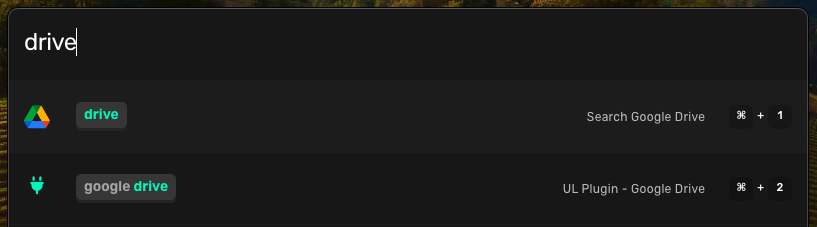
When you see UL Plugin - <Plugin Name>:
- Selecting this opens the plugin’s dedicated page
- Access detailed guides and documentation
- Configure plugin-specific settings
Installing from the Command Bar
You don’t have to leave the launcher to add a plugin. Type install followed by a plugin name (for example install slack) and hit Return to jump straight to that plugin’s install page.